Manual Sections
Options
Important notice: Due to recent releases, you may find some of the contents of this online manual, including the video tutorials, to be outdated. Specifically, it's important to note that the current Mac version of PokerSnowie does not yet contain all the features, since the Hands Import and Hand Range are not yet implemented. However, our team is working on it. We are also currently in the process of updating these materials. In the meantime, you can get a more accurate description of PokerSnowie's features on the various platforms by visiting the Downloads page and try out the software.
Options
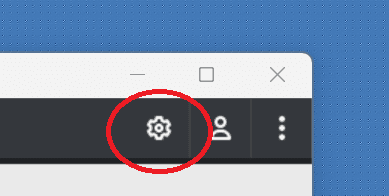
The options window allows you to customise certain aspects of your PokerSnowie experience. The options icon can be accessed from the main application window.
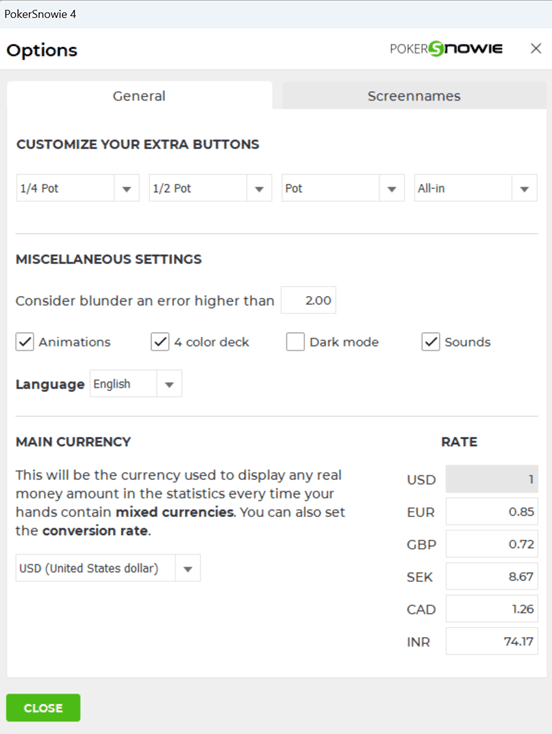
The options panel is divided into ‘General’ and ‘Screennames’ tabs.
General
Customize your extra buttons
You can customize the extra buttons that you prefer to use, these buttons are available when editing a Scenario, and during Training sessions.
Miscellaneous settings
The default threshold for a blunder is set to an EV loss of 2.0 big blinds. However, this threshold can be adjusted to your preferred value.
Animations, 4 colour deck, Dark mode and Sounds can all be toggled on/off using the available check boxes.
The default application language can be changed from the drop-down menu.
Main currency
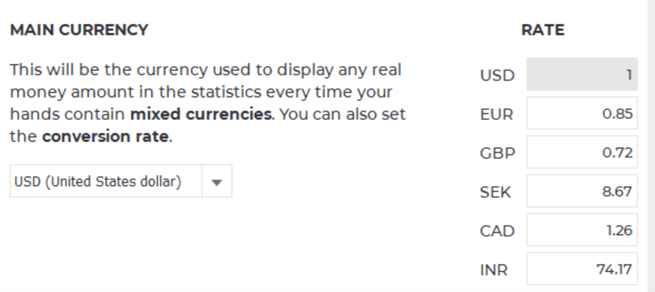
If you import hands that are played in a single currency, that currency will be used when displaying your summary information. However, if you import hands with mixed currencies, you have the option to choose your main display currency. All amounts will be converted into the main currency you have chosen.
The exchange rates have a set default value, however you can freely edit these using the ‘Rate’ chart.
Screenames
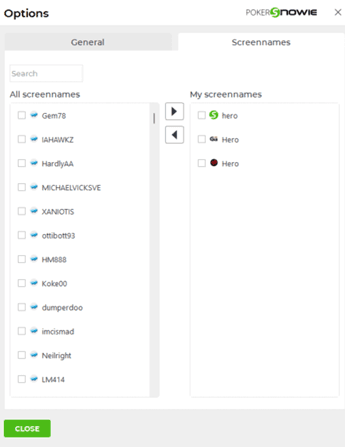
Using the Screennames panel, you can select and filter your specific names from a full list of all available screennames. The checkboxes and arrows allow you to easily move screennames on and off your custom list.
You can use the search box to find a specific screenname more easily.