Manual Sections
Training
Important notice: Due to recent releases, you may find some of the contents of this online manual, including the video tutorials, to be outdated. Specifically, it's important to note that the current Mac version of PokerSnowie does not yet contain all the features, since the Hands Import and Hand Range are not yet implemented. However, our team is working on it. We are also currently in the process of updating these materials. In the meantime, you can get a more accurate description of PokerSnowie's features on the various platforms by visiting the Downloads page and try out the software.
Training is a great way to learn poker, whilst having fun playing directly against PokerSnowie. The intuitive interface will help you become a stronger player by rapidly increasing your experience level.
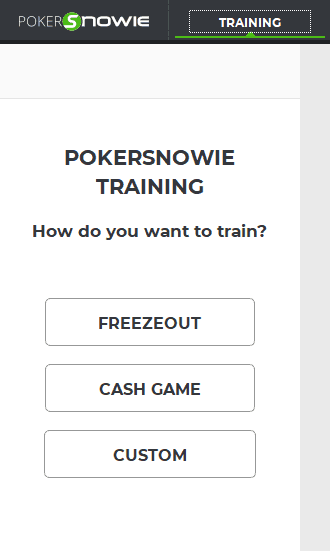
Clicking on ‘Training’ in the main menu opens the training configurator, this will allow you to specify how you would like to practice. You can simulate a one-table tournament by clicking on Freezeout, pick a regular Cash Game, or set up a Custom session enabling you to repeatedly train from specific spots.
Please note you can only train with one open table at a time. It is possible to speed up gameplay by disabling ‘Animations’ from within the options panel.
Freezout
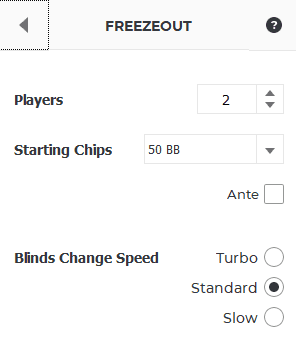
After selecting the number of players and starting chips, you can then choose from three different speeds. This parameter lets you set how fast you would like the blinds to increase. Please note that since we are not in a real tournament environment, where time is the factor that usually defines how often the blinds increase, we have decided to increase them based on the number of hands played.
The Ante option is designed to activate after a certain blind level during a Freezeout, this means that you will not see the Ante immediately.
Cash Game
Cash Game training allows you to reload your bankroll for as long as you wish. The session only ends when you decide to finish it.
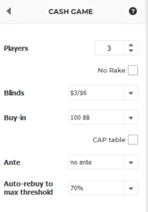
You can choose to rebuy automatically with the ‘Auto-rebuy to max threshold’. By default, this is set at 70% of your starting stack, however you can modify this using the drop-down selector. Please note the other PokerSnowie players will rebuy following the same logic.
If you choose a buy-in equal to or lower than 50BB, you have the option to play a CAP table by checking the ‘CAP table’ box. In this case the buy-in value will be used as the CAP value; the auto rebuy threshold will work as usual. Please note that if at the beginning of a hand, the amount of money you have at the table is greater than the CAP value, it will be reset to the CAP.
You can select several other preferences, including No Rake and Ante. If the No Rake option is checked, the AI’s evaluation will not consider any rake, this results in a ‘cleaner’ evaluation.
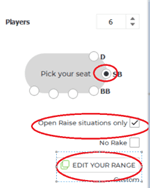
Custom training works like Cash Game play, but with several additional options to choose from. For example, you can pick a position from where to play every hand, pick a situation from where you would like to train, and select a customised range. This is very beneficial if you have some weaknesses when playing from specific situations, positions, or opening cards.
You can set-up your custom training session using the positioning buttons, the ‘Open Raise situations only’ checkbox, and the ‘Edit your range’ selector.
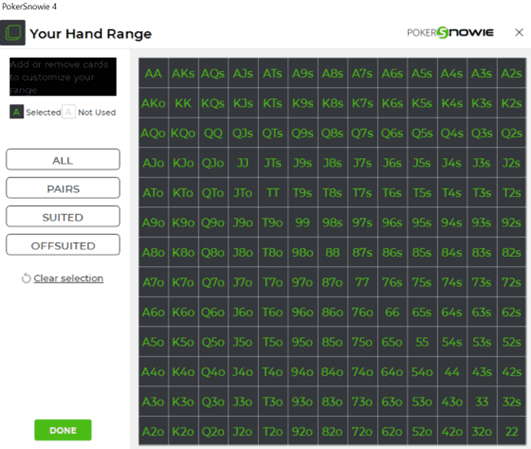
Using ‘Edit your range’ enables you to select hole cards which will be randomly distributed to you at the beginning of each hand. You can manually select the hole card range by clicking on individual combinations, or use the handy quick selector for pairs, suited, and off-suited possibilities.
Click ‘Done’ when you have settled on your selections and wish to proceed.
Click ‘Start’ when you are ready to play.
Live advice
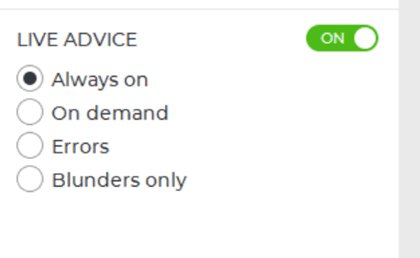
Live Advice is available for all three training types, this enables you to view PokerSnowie advice dynamically during live play.
There are several Live Advice modes to choose from, you can also toggle advice ‘Off’ should you wish to ignore it, for example if you are still learning or are experimenting with new strategies.
‘On demand’ will hide PokerSnowie’s advice and will only reveal the evaluation panel when you click Evaluate.
Selecting ‘Errors’ means that PokerSnowie will only reveal the evaluation advice when it determines that you made an error. When this occurs during preflop play, you may also see PokerSnowie’s Preflop Tip. You can choose to toggle the automatic tip on or off.
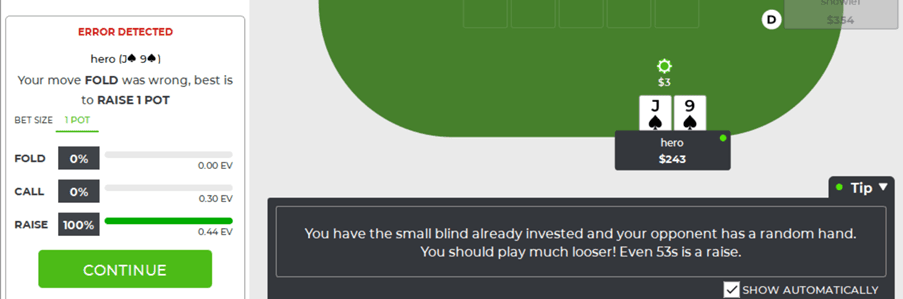
The final option is ‘Blunders only’. A blunder differs from an error in that it is considered as a costly mistake. By default, the threshold for a blunder is set to an EV loss of 2.0 big blinds. However, this threshold can be adjusted from within the miscellaneous settings in the options menu.
When analyzing your training hands later, there is a link to browse through all blunders, so that you can efficiently learn to avoid your biggest errors.
The great thing is you can change the Live Advice mode on the fly while playing, meaning it’s possible to switch between different advice types from hand-to-hand.
Fast Fold
Fast fold allows you to speed up play by evading hands which you know you will fold, regardless of your opponent’s moves. You can just give up the hand and start a new one right away, this will save you a lot of time and will help you to focus on the hands that really count.
Please note the Live Advice feature is disabled for any hand fast folded.
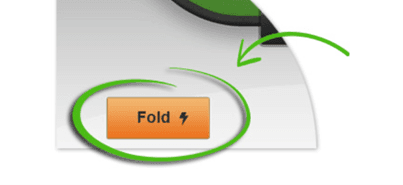
Table Features
By default, new hands start automatically. You have an option to change this and pause the game with the ‘auto start next hand’ check box.
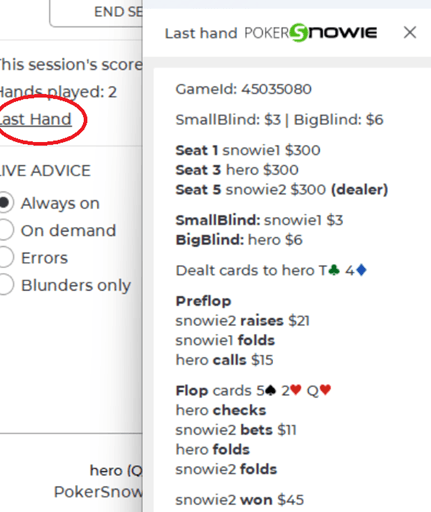
For all game types, you will see your current session score as well as the number of hands played. You can view the last hand summary at anytime by clicking on ‘Last Hand’.
It is possible to create a new scenario using the button 'Edit scenario'. When you use this function you will be switched into the Scenario window, however your training session has not ended, you can switch back at any time by clicking ‘Training’.
Ending the Training session and post-play analysis
To finish your practice session, click on ‘End session’ and confirm by selecting ‘Yes’. This will return you to the training configuration window.
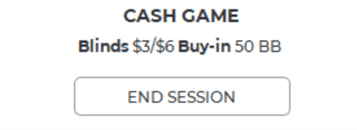
Once you have exited, all your hands are automatically imported into PokerSnowie, where they are available for full analysis. The import process can take a couple of minutes after the end of the session. To view the results of your training session, go to ‘Import & Analyze’.
The files from your game are called cash_xxxxx, freezeout_xxxxx, or custom_xxxxx. Select the file you wish to analyze and click on the ‘View results’ button to display the summary. You are able to select multiple files for analysis.
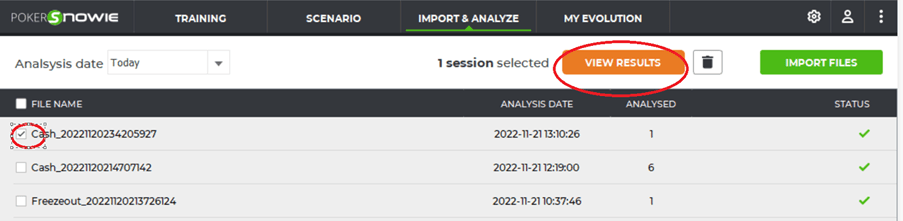
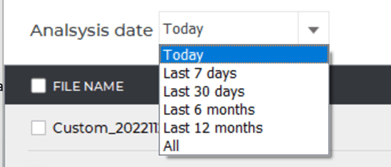
If you are unable to see your file, please check the ‘Analysis date’ filter to ensure you have selected the appropriate date range.