
Manual Sections
Quick Start Guide
Important notice: Due to recent releases, you may find some of the contents of this online manual, including the video tutorials, to be outdated. Specifically, it's important to note that the current Mac version of PokerSnowie does not yet contain all the features, since the Hands Import and Hand Range are not yet implemented. However, our team is working on it. We are also currently in the process of updating these materials. In the meantime, you can get a more accurate description of PokerSnowie's features on the various platforms by visiting the Downloads page and try out the software.
This quick tutorial shows you how to get started using PokerSnowie in a few simple steps.
1. Train with PokerSnowie
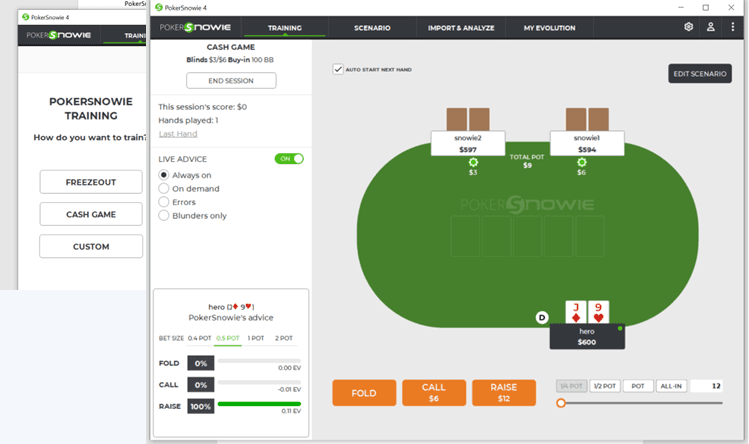
Playing against PokerSnowie is the perfect way to train and improve your game.
Click on 'Training' and choose from Freezeout, Cash Game or Custom. There are many different configurations to choose from, including game type, stake level, ante, cap, rake, and buy-in.
Turn on and customise the Live Advice to get suggestions as you're playing.
2. Try out a Scenario
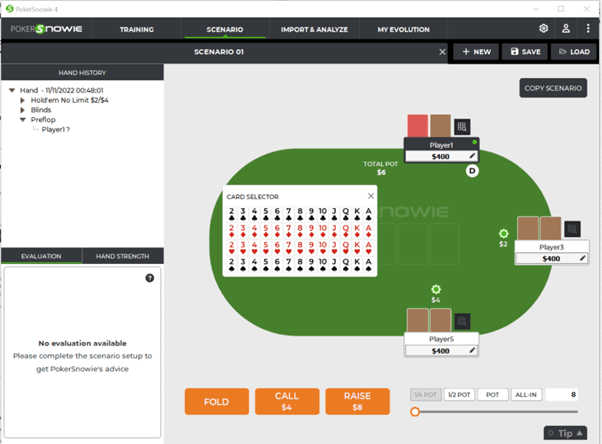
The 'Scenarios' feature is great for creating your own Poker situation and getting an evaluation by PokerSnowie about the best play, hand range, strategy advice and other factors. You can save Scenarios and view them again later or create a Scenario directly from a real hand.
It's easy to use, give it a try!
3. Import & Analyze your hands
To evaluate your gameplay, PokerSnowie will analyze your hand history. Click ‘Import Files’, select the hands you wish to analyze, and start uploading them. Please note, PokerSnowie will only allow import of real money hands from supported sites.
You can also analyze training hands played against PokerSnowie, these will automatically import after each training session.
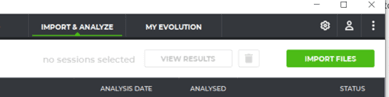
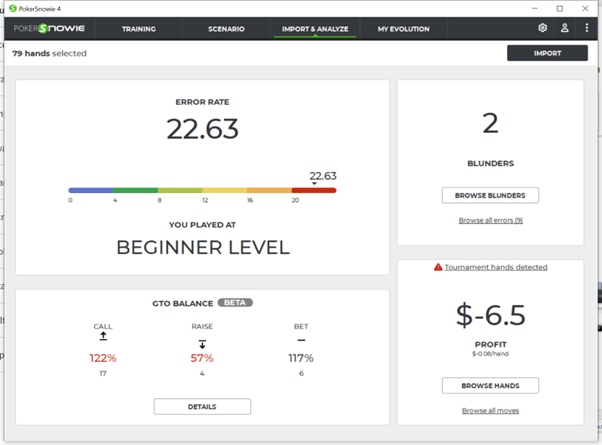
Once the import has finished, select the analysis date range, the hands you'd like to analyze, then click 'View analysis' to see an overview.
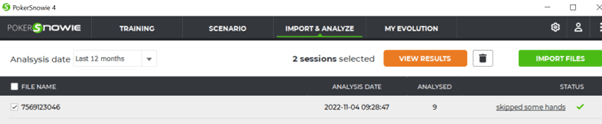
You will get an instant summary of:
- Errors and blunders you've made according to PokerSnowie
- Your error rate and how PokerSnowie ranks you
- Your GTO balance
From the overview you can browse your hands, review your errors, and explore GTO balance detail.
4. Track your improvements using ‘My Evolution’
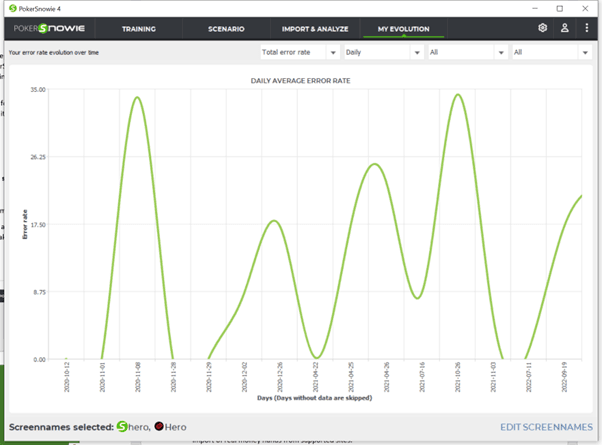
My Evolution tracks changes to your error rate over time, this will help you understand and identify trends in your play. You can display the graph using a variety of filters such as street, time period and game type.
Windows resize
To resize the PokerSnowie application drag the edges, or corner, of the window to your preferred size.
There you have it.
Should you need more help or information, you can navigate to the other items in the online manual, check our FAQ or watch one of the video tutorials.