Manual Sections
GTO Balance
Important notice: Due to recent releases, you may find some of the contents of this online manual, including the video tutorials, to be outdated. Specifically, it's important to note that the current Mac version of PokerSnowie does not yet contain all the features, since the Hands Import and Hand Range are not yet implemented. However, our team is working on it. We are also currently in the process of updating these materials. In the meantime, you can get a more accurate description of PokerSnowie's features on the various platforms by visiting the Downloads page and try out the software.
The GTO Balance summary shows you how balanced your play has been.
Balance is an important measure of the quality of your play. This is because that whilst you may have a good error rate, balance might be poor due to the weak/medium/strong ratio.
The displayed percentage represents the number of times you performed the move compared to PokerSnowie’s recommendation.
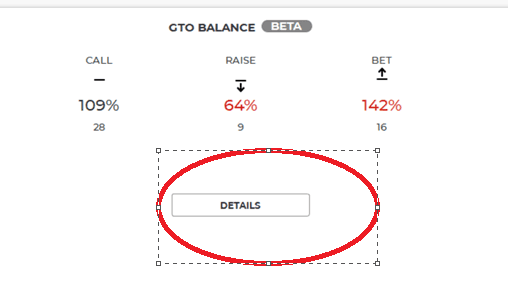
Clicking on ‘Details’ reveals a more comprehensive analysis of your balance quality.
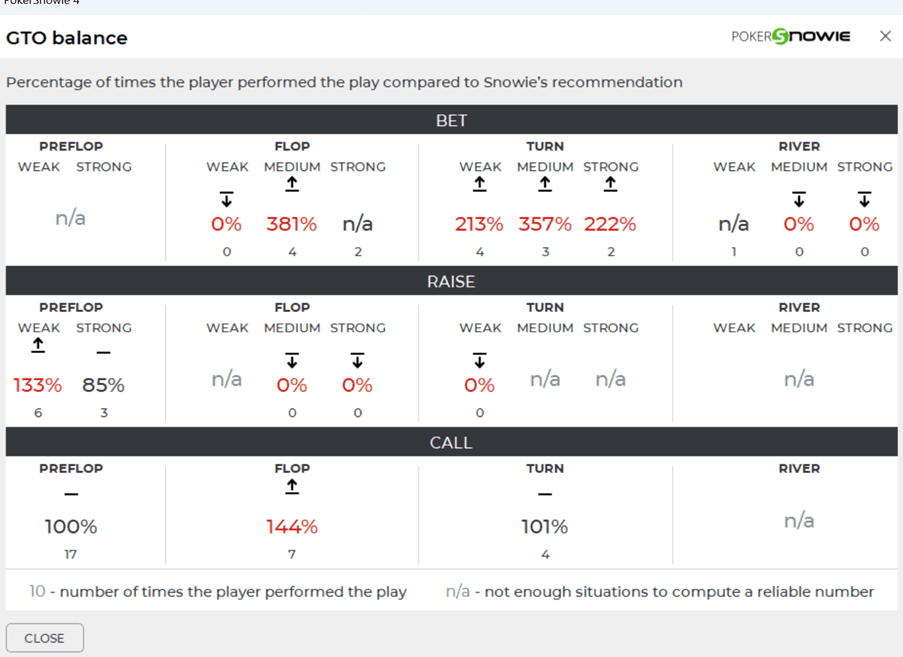
The 'Bet' section displays the percentage for all your bets and includes additional breakdown for weak (as a bluff), medium and strong (for value) hands. A result close to 100% is optimal, however it’s also important to have a similar ratio for each weak / medium / strong indicator. For example, consider 100% weak, 100% medium and 100% strong as ideal, although 150% weak and 150% strong is preferrable to 150% weak and 50% strong. A result like 150%/150% indicates too high a frequency of betting, although at least the ratio between weak and strong hands is correct. A result like 150%/50% is very bad, as the balance is poor, and your opponent could easily exploit this.

The 'Raise' section contains the same indictors and structure as the 'Bet' block.

The 'Call' section compares your calls with the number of calls PokerSnowie would have played, broken down by each betting round. A result of 100% is the perfect value, a number higher than 100% means you called too often, whilst a number lower than 100% means you didn't call enough.
Please note that the value below the percentages represent the number of times you played that type of move. If ‘N/A’ is displayed, it means there aren’t enough hands to compute a reliable value.

Browse Hands
This feature allows you to view detailed hand-by-hand and move-by-move analysis of the real money hands that you have imported.
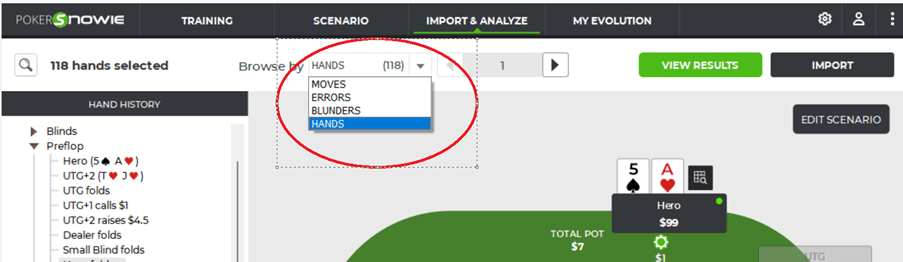
The ‘Browse by’ filter enables you to view your hands using several different criteria. For example, browse by moves, by errors, blunders, or by hands.
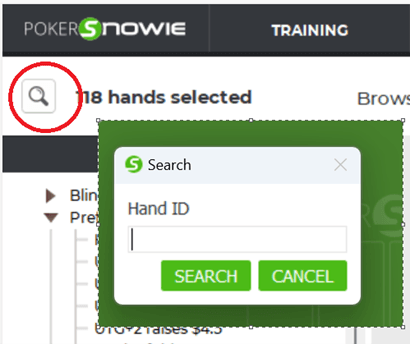
Alternatively, you can search for a specific hand ID should you wish to find a particular hand.
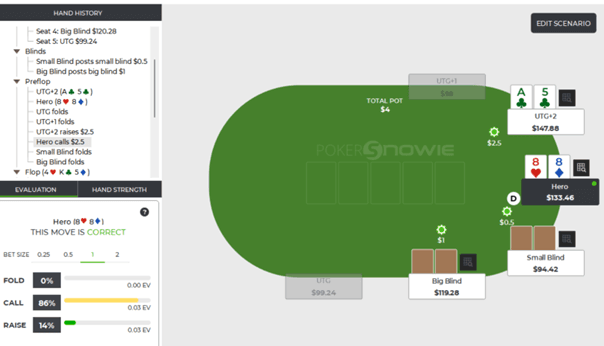
The entire hand history is displayed in a tree format in the ‘Hand History’ display panel. You can expand or collapse each round and clicking on any move takes you directly to the situation in the main window.
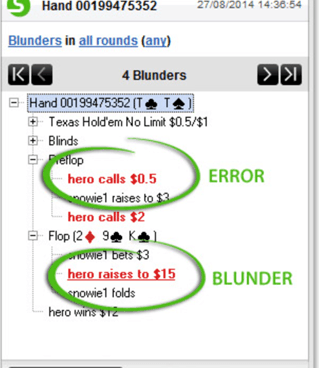
All move errors are displayed in red within the tree. Additionally, they are underlined if they are also a blunder.
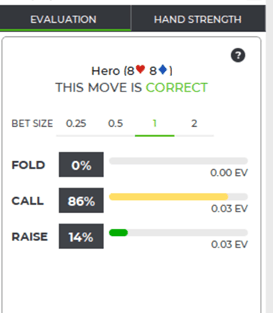
For every move the Evaluation and Hand Strength panels will display PokerSnowie’s analysis information. Please refer to the Evaluation and Hand Strength help section for more detail.
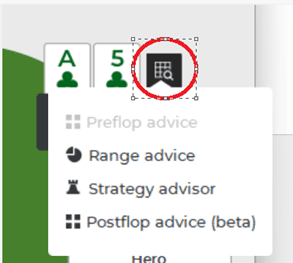
You can look at the Preflop advice, Range advice, Strategy advisor, and Postflop advice when these are available. Click on the grid icon next to the player cards to access this menu.
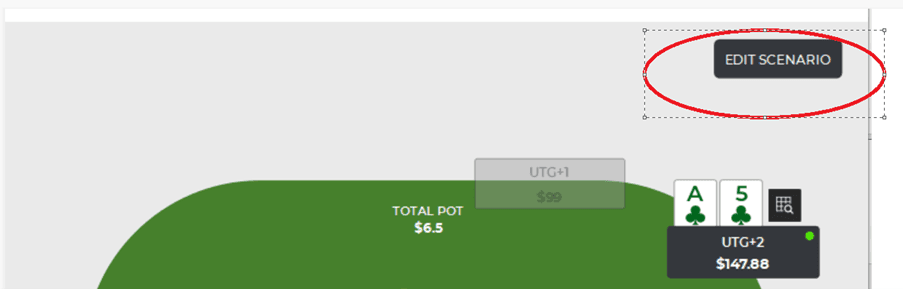
Finally, if you wish to analyze a specific hand or situation in more depth, you can click on the tree, or a particular move, and automatically create a scenario using ‘Edit scenario’. When you use this button, you will be switched into the Scenario window, however your hand browsing session has not ended, you can switch back at any time by clicking ‘Import and Analyze’.